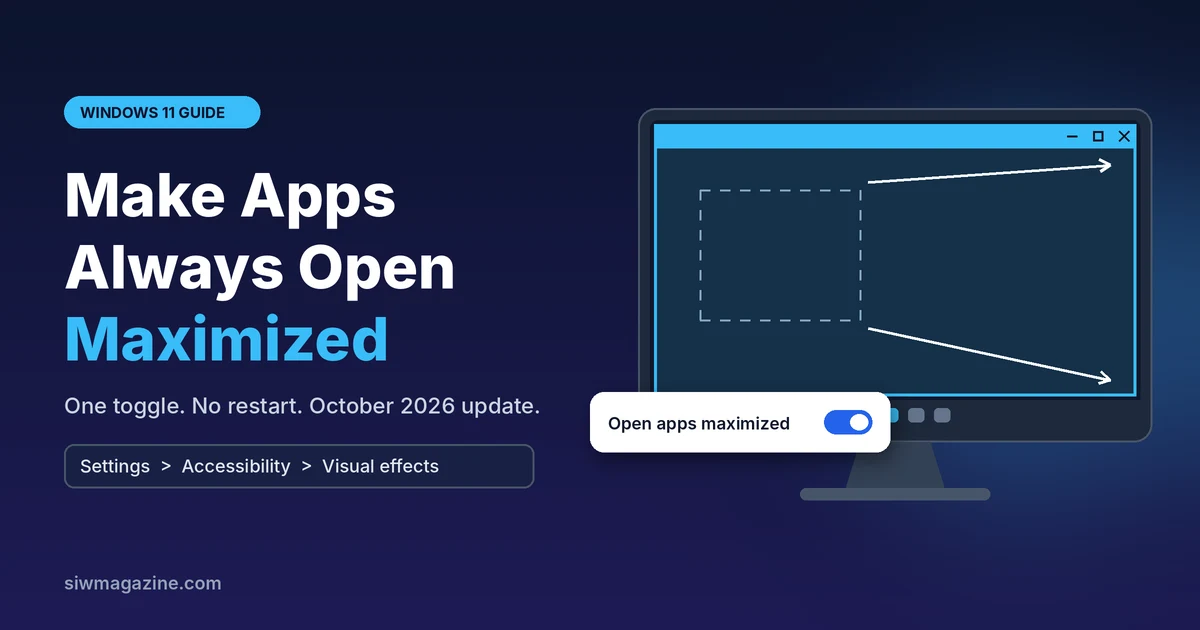
Tired of clicking the maximize button every time you open an app? Windows 11 finally has a built-in switch that does it for you, and it takes about 20 seconds to turn on.
Quick Answer: Open Settings > Accessibility > Visual effects and turn on Open apps maximized. Every app you launch after that opens maximized, not full screen. The toggle arrived with the October 13, 2026 Windows 11 update (KB5127648) for versions 24H2, 25H2 and 26H2. If you can’t see it, install the latest update and check again.
Key Takeaways
- Apps that are already open don’t change. Close and reopen them to see the effect.
- You can still shrink, move or snap any window after it opens.
- Older programs and emulators that don’t support a maximized window may ignore the setting.
- Want only one app maximized? The classic shortcut trick still works, even on Windows 10.
How do you turn on Open apps maximized in Windows 11?
You turn it on with one toggle in the Accessibility settings. No restart is needed.
- Press Windows + I to open Settings.
- Click Accessibility in the left menu.
- Under Vision, click Visual effects.
- Switch Open apps maximized to On.
- Close any app you want to test, then open it again. It should now fill the screen with the taskbar still visible.
To turn it off, go back to the same page and flip the switch to Off. Windows then goes back to its old habit of reopening each app at its last-used size.
Microsoft says the option was built for people who use Narrator or Magnifier, work in tablet mode, or just want a consistent full-screen workspace. In practice, it helps most on laptops with 13- or 14-inch screens, where a half-sized window wastes space.
Why can’t you find the Open apps maximized setting?
The toggle is missing for one of two reasons: your PC doesn’t have the October 2026 update yet, or Microsoft hasn’t switched the feature on for your device. Microsoft releases new features in waves, so two PCs with the same update can still look different for days or weeks.
Step 1: Check your build. Press Windows + R, type winver and press Enter. Compare your number with this table.
| Windows 11 version | Build with the October 2026 update (or newer) |
|---|---|
| 26H2 | 26300.9711 |
| 25H2 | 26200.9711 |
| 24H2 | 26100.9711 |
Step 2: Update. If your build is lower, open Settings > Windows Update and click Check for updates.
Step 3: Get features sooner. On the same page, turn on Get the latest updates as soon as they’re available. This puts your PC near the front of the rollout queue.
Step 4: Leave 24H2 if you’re on Home or Pro. The October update was the last security update for 24H2 Home and Pro. Moving to 26H2 keeps the fixes coming until October 2028, and the switch is a small download with one restart.
Does “maximized” mean full screen?
No. A maximized window fills your screen but keeps the taskbar and the app’s title bar, while full screen hides both. Many guides mix the two up, and the difference matters if you rely on the taskbar to switch apps.
| Maximized (this setting) | Full screen (F11) | |
|---|---|---|
| Taskbar | Visible | Hidden |
| Title bar and minimize/close buttons | Visible | Hidden |
| How you get it | Open apps maximized toggle, or the square button | F11 in browsers and some apps |
| Can you resize or snap the window? | Yes, anytime | Exit full screen first |
| Best for | Everyday work on a small screen | Videos, games, slideshows |
So turning this setting on won’t trap you in a full-screen app. It only changes the size a window starts at.
Which apps ignore the setting, and what can you do?
Most modern apps follow the setting, but some don’t. Older desktop programs and emulators that can’t use a maximized window may skip it. A few other apps save their own window size and restore that instead.
For any app that won’t cooperate, use the shortcut method. It works per app and has existed since Windows XP, so it also works on Windows 10:
- Right-click the app’s desktop shortcut and choose Properties.
- Open the Shortcut tab.
- In the Run drop-down, pick Maximized.
- Click Apply, then OK.
For an app pinned to the taskbar, right-click its icon, then right-click the app name in the menu that appears, and choose Properties.
Still no luck? Open the app, maximize it with the square button, then close it with the X. Many programs remember the size they had when you closed them, so the next launch opens maximized.
| Your goal | Best method |
|---|---|
| Every app opens maximized | Open apps maximized toggle |
| Only one or two apps open maximized | Shortcut Properties > Run: Maximized |
| You’re on Windows 10 or an older Windows 11 build | Shortcut method |
| One stubborn app ignores both | Maximize it, then close it with the X |
Should you turn it on?
Turn it on if you mostly work in one app at a time. Leave it off if you keep two windows side by side all day.
- Small laptops and 2-in-1s: Yes. On a 13- or 14-inch screen, a floating window wastes space you need.
- Handheld gaming PCs and tablets: Yes. Tapping a tiny maximize button is awkward on a 7- or 8-inch screen.
- Magnifier or Narrator users: Yes. Windows always opens in the same place and size, so there’s less to hunt for.
- Ultrawide or multi-monitor setups: Probably not. A maximized browser on a 34-inch screen makes lines of text too long to read comfortably. Snap layouts (Windows + Z) suit these screens better.
The setting costs nothing to try. If it annoys you, the same switch turns it off in seconds.
FAQs
Does Open apps maximized work on Windows 11 Home?
Yes. It sits in the standard Settings app, so Home, Pro and the business editions all get it once the update reaches them.
When did Microsoft add this feature?
It first appeared for Windows Insiders in Beta build 26220.9223 in August 2026. It then shipped in the optional preview update KB5124010 on September 22, 2026, and reached everyone in the October 13 security update.
Didn’t Windows 11 already maximize apps on small screens?
Early Windows 11 builds did this automatically on PCs with small displays, but that behavior quietly stopped. The new toggle brings it back as a choice for any screen size.
Should I use a registry tweak or ViVeTool if the toggle hasn’t arrived?
We don’t recommend it. Microsoft hasn’t documented a registry value for this setting, and forcing hidden features can break when later updates change them. Turning on “Get the latest updates as soon as they’re available” is the safer way to get it sooner.
Does the setting slow down my PC?
No. It only tells Windows what size to draw a window when an app launches. Nothing runs in the background.
Sources
- BleepingComputer: Windows 11 KB5127648 & KB5126653 cumulative updates released (October 13, 2026)
- Admin365: Windows 11 October 2026 Update KB5127648 — What’s New and Where to Find It (October 19, 2026)
- Windows Central: New Windows 11 feature to force apps to open full screen (August 2026)
- Pureinfotech: Build 26220.9223 for Windows 11 25H2 (August 21, 2026)